
**Hi all!**
# Intro
(feel free to skip to tl;dr)
About a year ago, I’ve recently struggled quiet a lot to reconnect a DS4 controller after it would no longer connect to my PS4. Luckily, I’ve solved it after only 6 hours of trying (2 of whiche were to calm my nervs).
And about a year later (as in yesterday) I came accross the same issue… and got pissed at myself for not having taken notes. So here it is! Even if this might not help anyone, it will serve as notes for myself if this happens again.
What happend?
I’ve been pairing my DS4 remotes to my laptop over bluetooth in order to play games on Steam. Whenever I’d want to reconnect them to my PS4, I’d just make sure my laptop was off (or it was running with bluetooth off) as to prevent any potential interference. I’d then connect all the remotes to my PS4 using the USB cable, and voilà: all’s good.
And then, one fateful night, things went south…
… connecting the DS4 to the micro USB cable which was connected to my PS4 would no longer work. On any of the 4 remotes I have! I’ve try reseting the controllers by holding down the reset button on the back with a paperclip, but to no avail. They would continue to seamlessly connect to my laptop over bluetooth, but would simply refuse to pair with my PS4. To tell you the level of my despair, I was strongly considering doing a hard reset of my PS4, but I refused. I couldn’t bear the idea of wiping all my saved games, and also… what if that wouldn’t solve my problem? I would then have added yet another thing to piss me. I was thinking…
There’s gotta be a way!
… and ther was!
So if you’re facing the same issue as I was, here’s what to do:
# tl;dr:
1. Turn on HDMI-CEC
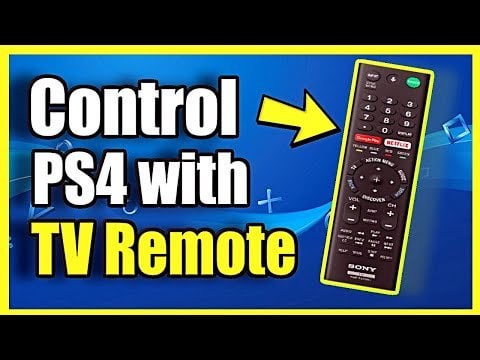
On your TV, turn on HDMI-CEC (called “SimpLink” on my LG TV – refer to your TV’s manual to find out about yours). This feature allows a device to control another device over HDMI. In this case, the TV will be controlling the PS4.
2. Turn off your PS4Turn off the PS4 by holding down the powerbutton for a long time until it powers off. Try to refrain from unplugging it’s power supply, as this might cause damage to the PlayStation Software or the hardware itself.
3. Turn off your TV
4. Turn on your TV
5. Go into the input (source) selection menu of your TV and select any input other than the one your PS4 is connected to
6. Go back to the input selection menu and select the input your PS4 is connected toThis should power on your PS4
7. Using your TV’s remote, you should be able to navigate the PS4’s on-screen menu
8. Using your TV remote, navigate to the “Settings” menu. Enter it.
9. Go to the “Bluetooth Devices” sub-menu. Enter it.You should now see a list of all of your DS4 controllers that you’ve paired to your PS4 in the past. In my experience, no matter what you do at this point, you can’t get your DS4 to pair with the PS4, no matter what you try.So here’s what took me some thinking to find:
10. Connect a USB keyboard to your PS4Make sure the PS4 recognizes it by displaying the keyboard logo in the upper left corner.It got a bit tricky for me: I have a weired USB keyboard (with a bunch of shortcut and function keys) which didn’t work. So I dug up a good ol’ USB keyboard that is as simple as they come, without any fancy buttons or any such thing, and it worked.
11. Remove the DS4 controller of your choice (or all of them)Using your remote or keyboard, open any DS4 controller. Open them by either using the “OK” or “Enter” button on your remote, or using the “Enter” key on your keyboard. In order to remove the device, you need to click the “Options” key on the DS4 controller (which isn’t connected to your PS4). Luckilly, your keyboards “F3” key acts as the “Options” key on the DS4. So, press the F3 key, confirm your want to remove your DS4 controller.Repeat for all DS4 remotes
12. Put your DS4 controller in bluetooth pairing modeYou can do this by holding down the “Options” and “PS” button your remote, untill the light starts blinking in short bursts.
13. When the controller shows up on your sceen as an available device to pair, select it using your TV’s remote or keybaord.
14. And you should be done!
I hope this have helped some of you! If not, it will at least help me as a guide for next time (as I’m sure this episode won’t have been the last time)
I have written all of this from memory, so I appologize for any inconsistencies.
If I can find some time to spare, I’ll try to make a quick video about this and maybe add some pictures.
credits:
\- Setting up HDMI CEC: [https://youtu.be/fuLIdVQmvD4?t=17](https://youtu.be/fuLIdVQmvD4?t=17)
\- Mapping of USB keyboard keys: [https://www.reddit.com/r/PS4/comments/4c7g8x/what\_are\_the\_keyboard\_controls\_for\_ps4/](https://www.reddit.com/r/PS4/comments/4c7g8x/what_are_the_keyboard_controls_for_ps4/)